Showing posts with label Blogger Tricks. Show all posts

Monday, 15 September 2014


Hello Friends, Are You Suffering From This Error??
That had appeared on many person's websites/Blogs. Even my blog was a victim of that. When anyone enters the affected website/Blog, a box will appear(as shown in the picture) about some error that asking for entering a username and password. So this can be a large issue for your website/blog and the main thing is that this error can be cause a huge decline in your website/Blog traffic, Because many people will be afraid by seeing those boxes and they will stop visiting your website/blog if the problem persists.

Why This Error Occurs ?

This error occurs when any script got deleted. This script will be hosted by other persons and when they remove those scripts, we are suffering if we were using those scripts on our website.

Now I Going To Show You How I Fixed This Error.
To Fix This Error Follow My Steps :

  • Go to blogger.
  • Go to the template tab.
  • Find the script used by that address [ eg:- https://widcraft.googlecode.com ].
  • It will be like <script src="https://widcraft.googlecode.com/scriptcode" /> [scriptcode varies according to the link ]
  • Delete that script.
  • Save your template.
If you can't find the address [ eg:- https://widcraft.googlecode.com ] On template tab then try finding the address on the Layout tap (HTML/JavaScript). After that delete that script and save.


And If you are using any other website services, please follow these steps :

  • Find the source code of your website.
  • Find that script used by that address.
  • Delete that script.
  • Save.
  • You are done.
To avoid this problem, it would be better if you host the code yourself.
You also can make a script its very easily on Yourjavascript and Google Code .


Thanks,
And If you like our post please share it with your friends..

Saturday, 23 March 2013


Writing a post on some of the things that are against Google's policy these things on your blog might result in your blog getting deleted, or at least flagged. It also might get flagged as a result of other people reporting your blog for a violation. When this happens. your blog is automatically entered into Google's flag queue. A team will then review those flags, and if no violation is taking place, they will simply let that blog go. Otherwise, appropriate action against the blog is  taken to maintain the safety of the network, and to ensure no such thing happens again from that party in the future.
So how can you tell when your blog has been penalized? Google does send the blog owner an email message detailing them on the situation, and a recourse to be taken (if any). You can also tell when any of the following happens to your blog. These are the actions Google takes against flagged blogs indeed found guilty of violation(s).

Actions taken against blogs that are flagged

Mature content interstitial - This usually happens in case of adult-content hosted on your blog. Your blog will be placed behind a 'mature content interstitial', which means that it will no longer appear in safe search. It can only be searched by users who have their family filter turned off, which effectively reduces your traffic.
Blog becomes visible only to the author - Others won't be able to see or search your blog. Only you would be able to see it.
Deletion of offending content - Frankly speaking, this is the least that could happen to your blog. Google will only remove the content that's violating its policies. So as long as your website isn't filled with such content, you're fine.
Disabled Blogger account - OK, now this is getting serious. If you have been copying content, or spamming, you might end up getting your account banned.
Disabled Google account - Google won't just stop at disabling your Blogger account. If your offense is serious, then your entire Google Account, with all the associated profiles related to other Google products.
Reporting to law enforcement - OK, things are getting pretty real now, so you might as well snap out of it. If you're involved with cyber-crime, or are promoting illegal activities, you might get reported to law enforcement agencies. Now would be a pretty good time to pack your bags and run away :

How to report a violation?

These steps, harsh as some of them may sound, are necessary for the sake of the safety and sanctity of the Blogger network. If you see someone violating Google's guidelines by doing any of the things forbidden by Google, please don't hesitate to report that particular blog to Google.
To report a blog, simply visit Blogger's Help Canter section about reporting abuse. Do give Google's guidelines before filing a report. If you're sure that a blog is violating the policies, then you can use the different links given at the end of the report abuse page in Blogger Help Center to file a report. Help make the internet a better place by reporting policy-violators. Stay blessed :)
If you like our post please share it with your friends.  

This is a quick post on a crawling error that was causing issues for most of you. For over a year we were all scratching our heads on why Blogger is showing two meta descriptions for homepage and post pages. Webmaster tools shows duplicate meta description error for blogger homepage and individual item pages that are posts. If you view your blog's source file then you will find two meta descriptions for the same page. One below <head> tag and one just above <title> tag. This double occurrence of meta tags for description appeared when blogger introduced Search preferences last year that offered blogspot users to insert dynamic description for every post they publish. This option is present inside Blogger's Post editor as "Search Description".

How to fix duplicate Description error?

Last year we shared the code that will install dynamic search description option even in custom templates. If you are using that code then its extremely easy to fix the error. If in case you have not yet added that code or you use Blogger Template's styles then you may simply add the code I will share in today's tutorial.

Follow these easy steps:

  1. Go To Blogger > Template
  2. Backup your template
  3. Click Edit HTML
  4. Search for the following code:
<b:if cond='data:blog.metaDescription != &quot;&quot;'>
  <meta expr:content='data:blog.metaDescription' name='description'/>
</b:if>
  Note: If you can not find this code then do not panic and skip this step and follow step#5.
    5.  Now replace the above code with following set of codes:

<b:if cond='data:blog.url != data:blog.homepageUrl'>
<b:if cond='data:blog.pageType != &quot;item&quot;'>
<b:if cond='data:blog.metaDescription != &quot;&quot;'>
  <meta expr:content='data:blog.metaDescription' name='description'/>
</b:if>
</b:if>
</b:if>
Note: For those of you who could not find the code in step#4, then you may simply copy the above code (in step#5) and paste it just below <head>
  • The blue code will disable duplicate occurrences on homepage
  • The green code will disable duplicate occurrences on Post Pages
      6.  Save your template and you are all done!Now visit your homepage or any post page and click CTRL + U to check its source file. You will find only one occurrence of meta description. :)  

Need help?

I hope this improvement will further optimize your blogspot code structure and will help robots to better crawl and index your content. Please let me know if you needed any help. A great surprise is coming for those who live in our city. We are coming in public again with several new business strategies and ideas. Would love to see you guys this time. Peace and blessings buddies :)
If you like our post please share it with your friends. 

Whether you are a beginner looking to make a mark on the internet or just wanting to learn some stuff, or a pro who wants serious business online, Google is always there to help you. At the Google Webmaster Central blog, you will find any number of news, tutorials, tips, and best practices involved with webmastering. Google wants to help you out in making your content available to the world, and has released many items related to Search Engine Optimization, Google released an eBook some time ago which contained all the basic SEO tips you could think of in a nutshell. Well now, for starters, Google has released a new one-page quick-start eBook which captures the essence of SEO as it is used today.

Dubbed as a 'first steps cheat sheet' by Google, this eBook is specifically designed for people who have set up a blog or an online presence, but haven't given much thought to search. They might have made some content, but don't know the ABC of getting their website into Google Search.

This book is a very short and concise guide on search engine optimization, with tips on how to create SEO friendly design, This will help search engines like Google itself to better understand the content on your site, and hence will increase its visibility.

Take a look at this amazing one-page SEO eBook here.


How to download this eBook?

Here's the direct download link to this eBook;

Download: Google One Page SEO Guide

If you're more of an advanced user, we something for you too! You can check out the more extensive Google SEO Starter Guide that will detail you through most of the basic SEO aspects.

This eBook is free to use, and you can distribute or print it as you like! Give it a read, and share the knowledge with others too and increase awareness! All the best :)
If you like our post please share it with your friends.

Google Blogger is a very popular publishing platform. Millions of blogs run on Blogger, adding a vast inventory of knowledge to the internet. It is a free service designed for communication, self-expression and freedom of speech. But while that stands, Google also has to uphold its image of quality and safety for its users. If a blogger violates Google's quality guidelines, then Google will take action against that Blogger blog to protect its users. A lot of people ask us why their blog was suspended or deleted, even when they seemingly didn't do anything wrong. Well, there must be something they were doing, which is why Google had to do it. In this post, we discuss what things go against Google's policies, and which things you must avoid to stay safe.

11 things to avoid in Blogger blogs

1. Hate speech

Hate speech is something which, even though is very common on the internet, isn't appreciated by Google. Promoting racism, and hate against a specific religious or ethnic group is a crime, and is not tolerated by Google.

2. Violence

Google is used all over the world by people from different geographic and demographic groups. Promoting violence on your blog would not be suitable to many people, especially children who are easily effected. Also, promoting violence against a certain group comes under racism, which is also not allowed by Google.

3. Illegal activities

Blogging about any sort of illegal activity, such as drug or alcohol use, is illegal. The general rule is, if you could get into trouble by talking about something in front of a cop, then most probably that thing also comes under this section, and is punishable by a ban.

4. Gore

You must not have images, videos, or other graphical content that contains gore, or that could be disturbing to some people. For example, you can not show a man getting brutally killed by a shotgun, or a horrific accident that resulted in gore/death.

5. Adult content

Google has some strict laws against pornography and adult content. Although Google doesn't directly denounce this stuff, you still need to mark your blog as 'adult' from your Blogger settings, otherwise it won't be treated any differently. Google, however, doesn't allow you to make money off adult content.

6. Child Safety

According to Google, it has 'zero tolerance' when it comes to content that might manipulate or harm children. It is strictly against child pornography and paedophilia, and will immediately terminate the account of any blogger who is promoting such stuff.

7. Copyrighted material

No one likes it when someone copies their content and gets away with it. Google has a pretty effective system of curbing this problem as best as it can. First of all, copyrighted content will result in a lower rank, and the suspension of Google AdSense for that site. Continued plagiarism will result in the deletion of your blog. So be ware! (If you find someone copying your content, you should report it to Google).

8. Violating privacy

Please don't publish someone's confidential details without that person's express permission. Posting other people's credit card numbers, phone numbers, contact information, and other such private information is against Google's policies, and must be avoided.

9. Impersonation

Stealing someone else's identity and impersonating someone is a crime punishable by imprisonment and/or fine. For example, pretending to be someone else, or using their aliases is not OK.

10. Spam

Spam is something not appreciated by Google, or any other search engine for that matter.Google is forever trying hard to keep spam out of its system. It rolls out algorithmic updates regularly, and does not appreciate it when you start spamming.

11. Malware

Virus and malware isn't something users appreciate. That is why Google takes initiatives to keep malware out of its system. If your site is infected by a virus, you should check it out immediately. If you are involved with spreading malware more than once, then you run the risk of inadvertently getting banned by Google.
Please note that there might be a few exceptions to these rules due to educational, scientific or artistic considerations. These exceptions are made when there is a benefit gained by the public from such information. Otherwise, blogs with such content will be banned or deleted. So always play safe. And remember! When in doubt, always ask. We're here to help :)
And if you liked this post,Then please like us on fbpage. Thanks!

Thursday, 24 January 2013


Hi Users today im going to show you how to optimize blogger posts tittles for better seo. Heading tags have a great importance in Search engine results, Heading tags helps Search engines to recognize what is important in your blog.Heading are form H1 to H6 .H1 tags have higher priority.So we are going to hack blogger template by changing H3 tags to H1 tags. By default blogger post title is in H3 tag,here is a trick to change it to H1 tag for more SEO. So, Just follow my steps :

  • Login to Blogger  >> Go To "Template"
  • Click on "EDIT HTM" Button  >> then click on Proceed button 
  • Now find the below Codes (code may be differ according to template try find similar)
  • Or simply find <H3


<h3 class='post-title entry-title'>
      <b:if cond='data:post.link'>
        <a expr:href='data:post.link'><data:post.title/></a>
      <b:else/>
        <b:if cond='data:post.url'>
          <b:if cond='data:blog.url != data:post.url'>
            <a expr:href='data:post.url'><data:post.title/></a>
          <b:else/>
            <data:post.title/>
          </b:if>
        <b:else/>
          <data:post.title/>
        </b:if>
      </b:if>
  </h3>


  • And Replace h3 TO h1

Now save your template.That’s it.

Note: I have noticed that this trick displays error in some webmaster like Bing. If you get error message from the webmaster then change the H1 tags which we changed before to H2.


If you like our post please share it with your friends.


Wednesday, 23 January 2013

Hi Users today im going to tell you how to hide "Subscribe To:Posts (Atom)" from blogger.Under the every post or article on Blogger, there is a "Subscribe To posts(Atom)" link. This link is a RSS feed subscription link. The default postion of the link is under the page navigation in Blogger blog. Blogger has only the default text on their template.In order to removing completely this link just follow my steps:

Step 1: Find below line in Edit HTML (First click on Expand widget templates)

<div class='blog-feeds'>
Step 2: Replace below line with "<div class='blog-feeds'>"

<div class='blog-feeds' style='display:none;'>


Now save the template & reload the page.
If you like our post please share it with your friends.

Tuesday, 22 January 2013

Hi users today im going to tell you how to make your blogger blog fully search engine optimize.Most of us like me use Blogger.com to start their free blog which may be for making experience or sharing knowledge, in the voice of blogging. But if your blog is not Search Engine Friendly than you can not archive your aim or target. For that purpose you need to make your blog fully Search Engine Optimized, so that people searching their keywords will easily access to your blog.Some time ago Trick Donor introduced the Meta tag Generator tool with meta tags optimization tips for our visitors,But today I will tell you that How to make Blogger blog highly search engine optimize using correct Meta tags.Meta tag is one of the main factor of onpage seo (search engine optimization)Many blogger using Meta tag in own blog but he does not know that Meta tag.If you want to optimize blogger comments, archives and labels for better search then visit here.
Want to make your blogger blog search engine friendly so you can follow simple steps,steps are below.

Steps to Make Blogger Blog Search Engine Friendly using Meta tag.

Step 1: First Backup Your Blogger Template before Making Blogger blog Search Engine Optimize.

Step 2: Go to Blogger Dashboard >Template > Edit HTML > press Ctrl + F and find <head>.

Step 3: Remove every thing between <head> to <b:skin><![CDATA[ 
Step 4: Just Place the following code(below) between <head> and <b:skin><![CDATA[ 

<b:include data='blog' name='all-head-content'/>
<b:if cond='data:blog.url == data:blog.homepageUrl'>
<title>.....you blog title here.....</title>
<meta content='......you blog description here.....' name='Description'/>
<meta content='.....your blog keywords here keywords must be related to you blog....' name='Keywords'/>
</b:if>
<b:if cond='data:blog.pageType == &quot;index&quot;'>
<title><data:blog.title/></title> <b:else/><title><data:blog.pageName/>-Your blog name only</title> </b:if>
<b:if cond='data:blog.pageType == &quot;item&quot;'>
<meta expr:content='data:blog.pageName' name='Keywords'/>
</b:if>

Replace the highlight text from above code.
See the below screen shot of meta tag code by Tricks Donor between <head> and <b:skin><![CDATA[


Click on SAVE TEMPLATE button.

Step 5:  Go to Blogger Dashboard > Settings  > and you can see Title and Description box on Settings page

Enter Title of your Home Page again
Enter Description of your Home page again ( see below screen shot, I think is helpful for you).


Click on SAVE SETTINGS.

Step 6: Go to draft.blogger.com > select your Blog and open > click on Settings you see > Search preferences option click this option you use this feature only on New Blogger Interface not in old Blogger Interface.you see Crawlers and indexing text below the text two options are :
1.Custom robots.txt.
2.Custom robots header tags.

1.First you click Edit (right side of custom robots.txt option) see below screen shot.

User-agent: Mediapartners-Google
Disallow:

User-agent: *
Disallow: /search
Allow: /
Sitemap: http://www.you blog url here.com/feeds/posts/default?orderby=UPDATED
Change "http://www.you blog url here.com" to your blog URL.
From above code enter in Custom robots.txt box like above screen shot and click on Save changes button.
2.Click on Edit (right side of Custom robots header tags ) see below screen shot.
Set custom robots header tag according to screen shot and click on Save changes button.


How to use Search Description Feature:
You see this feature right side in post editor (see below screen shot).
Step 8: Adding Image tag in blogger to drive traffic of your blog through search engines.


<script type='text/javascript'>
//<![CDATA[
jQuery('a').each(function() {
    // Let's make external links open in a new window.
    var href = jQuery(this).attr('href');
  
    if (typeof href != 'undefined' && href != "" && (href.indexOf('http://') != -1 || href.indexOf('https://') != -1) && href.indexOf(window.location.hostname) == -1) {
        jQuery(this).attr("target", "_blank");
    }
});
jQuery('a').each(function() {
    // Let's make external links open in a new window.
    var href = jQuery(this).attr('href');
  
    if (typeof href != 'undefined' && href != "" && (href.indexOf('http://') != -1 || href.indexOf('https://') != -1) && href.indexOf(window.location.hostname) == -1) {
        jQuery(this).attr("rel", "nofollow");
    }
});
$(document).ready(function() {
  $('img').each(function(){
    var $img = $(this);
    var filename = $img.attr('src')
    $img.attr('alt', filename.substring((filename.lastIndexOf('/'))+1, filename.lastIndexOf('.')));
  });
});
$(document).ready(function() {
  $('img').each(function(){
    var $img = $(this);
    var filename = $img.attr('src')
    $img.attr('title', filename.substring((filename.lastIndexOf('/'))+1, filename.lastIndexOf('.')));
  });
});
//]]>
</script>

Go to Blogger Dashboard > Design > Edit Html and search for </body> 
Copy the above script and paste it to above the </body> tag and Click on SAVE TEMPLATE

That’s it. Now your blogger blog is fully and properly Search Engine optimize.
If you like our post please share it with your friends


In this post you will see that, How to Backup and Restore Blogspot Template Design.
Before making any type of customization (any type of changes in the HTML Code) of your blogger template,You must Backup your template to avoid risk of any error.You can easily back-up your blog template design. It's very easy and quick process.Read the instruction below to backup your valuable blogger template.


Steps to back-up blogger template design.

1.First go to Blogger.com
2.Login to your Blogger DASHBOARD ►


Steps to Restore your blogger template design.

1.DASHBOARD ► Template ►Backup / Restore
2.Click on “Choose File”.
3.Now select your new blogger template file (it there as a xml file) and click on “Open”.
4.Click on "Upload".
If you like our post please share it with your friends

Monday, 21 January 2013


Hi users today i m gonna show you how to optimize blogger comments, archives and labels for better seo. Seo is one of the best And important part of bloggers life because your blog is nothing without Seo. With which your blog can entered into search engines result. Same like this meta tags are also important for blog.  today i,m going to tell you that how to optimized your comments, archives, And labels in blogger blog .every blogger must know about seo and about their customization .
Now i,m going to tell you that how to optimize archives, labels and comments.

How to optimize comments :
Comments are very Good and best way to increase your blog ranking if you have good comments then it help you to increase your blogs rank but if those comments are not good and irrelevant then it totally destroy you ranking in search engines . So, the best way to optimized your comments for search engines The you must keep your comments external links No-follow . Follow me to make your comments links no-follow.

  • Goto blogger 
  • Edit html and find


expr:href='data:post.createLinkUrl'


  • now replace above code with below code

rel='external nofollow' expr:href='data:post.createLinkUrl' 

Save your templates and its Complete

How to optimize Labels: 
Labels are also an important part of blogs we use them for better navigation and with the help of these labels user easily find the category in which he want to go. But they create much problems for search engine crawlers so then they also Optimized for search engines ranking.

  • goto blogger
  • edit html and find 

<a expr:href='data:label.url'


  • now replace above code with below code

<a expr:href='data:label.url' rel='tag'

Save your templates and its Complete.

 How to optimize Archives: 
Archives is also a problem for search robots . if achives pages are present in home they create huge problem for crawler robots do, if you want to get rid of this problem then follow mine steps

  • goto blogger
  • edit html and find

<a class='post-count-link' expr:href='data:i.url'>


  • now replace above code with below code

<a rel="archives" class='post-count-link' expr:href='data:i.url'> 

Save your templates and its Complete
If you like our post please share it with your friends

Friday, 11 January 2013


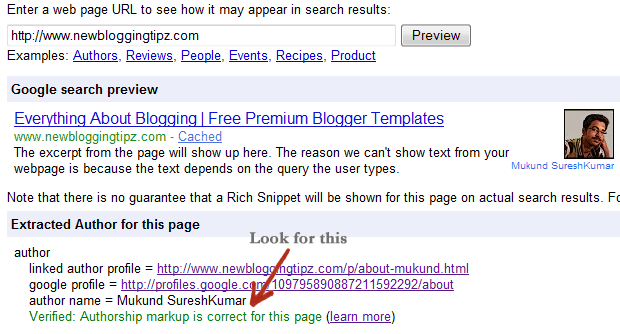
Today i gonna show you how to display author profile pic in google search. It looks attractive to see an author image appear next to post titles with a small snippet on the homepage of a blog.What if the same happens on Google Search Engine as well? Yes, we can achieve the same effect on Google Search Engine using the Authorship Tool. Just take a look at the following screenshot for better understanding.

See how it makes the listing stand out? The click through rate on everything is higher with images. It also looks more professional as well.  This is a part of Google’s new authorship program which I think will soon make a big impact on SEO.

So how do you do it?


1. On your website sidebar or header or footer add this link

  1. <a href="https://plus.google.com/GOOGLE+ ID" 
      rel="author" target="_blank"> Join me on Google+</a>

    Note: Do not remove rel="author" else the trick wont work!
    Replace GOOGLE+ ID with your Google profile link id.

2. CREATE AN ABOUT ME PAGE

I’m sure many of you possess an “About Me” page on your blog. If you don’t, then I strongly suggest to make one! Now, make sure you provide a link to your Google Profile with rel=”me” embedded in the anchor tag. Your anchor tag should be similar to the one shown below.

<a href="http://gplus.to/yourprofilename" rel="me">My Profile</a>

To find out your Google Profile link, click here – My Google Profile. The one that you see on your navigation/address bar, is the link. You may use the following service – GPlus.to to avoid the numbers that appear at the end on link. In other words, to shorten your profile URL.

3. LINK THE ARTICLES TO YOUR ABOUT ME PAGE

You’ve to link each article on your blog to the ‘About Me” page on your blog with rel=”author” embedded in the anchor tag. Your anchor tag should be similar to the one shown below.

<a href="http://www.yourblog.com/aboutme" rel="author">About the Author</a>

It is better you add the above mentioned tag to your “Author Info” box – the one that appears beneath each article published on your blog. Don’t forget to add the same tag on your homepage, as well.

4. ADD A CUSTOM LINK ON YOUR GOOGLE PROFILE

This is the last step to enable the authorship for your blog. Just navigate to your Google Profile and click Edit Profile. Under the links section, add a new custom link that links to your “About Me” page with a tick enabled for the option that says “This page is specifically about me” and save the changes. That’s it! Take a look at the screen shot below for better understanding.

5. Next Upload a quality Profile Pic of your self.

Your image will look best if it is 150px by 150px in size.

6. Test How your profile photo will appear on SERPs

To know whether you installed these stuffs properly, visit the rich snippet tool on Webmaster tools and copy-paste your recent URL on the box there and hit the preview button. If you find the result saying Verified, then your done!

As far as I know, Google has started to roll out this option only for renown authors initially and it’s still not effective for all the authors around the web. Anyway, I’ve enabled this authorship markup for my blog. How about you? Share your opinions via comments!

In this tutorial i will show you how to replace the 'Post A Comment' text that appears above the comment form with an image. Also, I will make available to you a few cool images or you can add your own image if you like... so let's get started.


How to replace Post a Comment with an image

To replace  "Post A Comment" message in your Blogger / Blogspot blog follow the next steps:

Step 1. Log in to Blogger, go to your Blogger Dashboard >> Design >> Edit HTML

Step 2. Tick the "Expand Widget Templates" checkbox.

Step 3. Now search (CTRL + F) for the code marked in red:

<a expr:href='data:post.addCommentUrl' expr:onclick='data:post.addCommentOnclick'>
<data:postCommentMsg/></a>


...and for this one too:

<h4 id='comment-post-message'><data:postCommentMsg/></h4>

Step 4. Replace <data:postCommentMsg/> with one of the below images codes:


<img src="https://blogger.googleusercontent.com/img/b/R29vZ2xl/AVvXsEhdsbpeGEw6eSqgEdt2IxSSuQi_HXaIfln6niiiwdf_pdf6rJKcdIexP7bUxDixH2Zn6Sm-yYM32ZbGpOXGMMma6sG54u48QFHq7MttHcURtMEVaBsGIzHeJZTDCGbJq6S5XA8t0EtpMf4/s1600/leave+a+comment.png" />


<img src="https://blogger.googleusercontent.com/img/b/R29vZ2xl/AVvXsEj4yV0Xrg7RxVzkiRINxqysYsFuSrxLdSoRyQRiICGG9-Rz_CSsIFSXHxKVYI5XUb-ltssm1ASyhMqsN9E9JTcQ0GVnnVWLe-gVX7_-QQEK1ZFBgLQW3lwCBLai-qtuZ8Bbe0ssKniodUE/s1600/Post+a+comment+blogger.png" />


<img src="https://blogger.googleusercontent.com/img/b/R29vZ2xl/AVvXsEhMSd2iD_gMjAQUFPukawvFjVfRls98A4s8c745WdoM5pqrAfPyzGwC-L146jc79cM4yB9BYpqtKU91WscNIhhxTCv7NPZxNYMObLK-v1RqUHVIAbeoL3caqMKPsbUHT3LwAcncWn4If4Ve/s1600/animated+comment+arrow.gif" />


<img src="https://blogger.googleusercontent.com/img/b/R29vZ2xl/AVvXsEg2aeewSMVn6ZHrxkw5xqA0Cu3PsuhLWVScrD6jvZPyVh0dLVasN0RDLEFy2JgYxvRp5yXD7sVEtOGMGZSZXS2fk4HGnsJrFyfMWXZ9ar0SipEZRrDdTspYMf6Abe49sdYmcqsMeJEfyBxy/s1600/leave+a+comment2.png" />


<img src="https://blogger.googleusercontent.com/img/b/R29vZ2xl/AVvXsEhS259cgwp6_AiddfOjco4S_g6YOQ3deMZ9NvhSXwl3vwhxVHLphoJIzmrCukkHT1Q-Fd2qKljddasUuaCTwVQ9dxQjxmiH61_v6VCgPb_K-JBAQvGMHRHCJZS5Y6fRwkeAKheGf5TQDG27/s1600/comment.gif" />

You can use your own image instead. Just upload your image on Blogger, switch to Edit HTML tab, copy the image code and replace <data:postCommentMsg/> with your code.

Step 5. The first steps will replace the text only when there are no comments available. To show the image each time new comments are added, we should add the code of the image we want to appear after the 4th of the below code (search 4 times for it):

<p><data:blogCommentMessage/></p>

Step 6. Save Your Template.

Thats it! I hope you like your new comment form !

How To Seo Optimize Blogger Images

Posted by Unknown | 00:06 Categories: ,
This tutorial will explain you how to optimize images before uploading them to internet. Generally most of people don't optimize images before uploading it to Blogger as needed. Optimizing images should be done when talk about the SEO (Search Engine Optimization). Learning the correct and proper way of optimizing images in blogger is important. Google Image search is used widely for finding quality reference images, icons and photos. A great percentage of our blog traffic depends on Image search. When we are downloading images, most of the time they are saved with very odd names and we don't take any interest in modifying the name. So you should always consider two things when uploading images to Internet these are proper use of alt tag and image name should be change with proper keyword. Let me explain..

1. Change Image Name with Keyword
see in the screenshot

When we are downloading images from Internet, generally they are saved in local drive with some very odd name like untitled.jpeg, img1.jpeg etc. So changing these names with appropriate keywords is always helpful. For example, if i want to add img1 or untitled in this post then definitely i will change these name with those words which describe the content called keywords so i will change to image SEO.jpeg or optimize image.jpeg.


2. Use alt attribute

Search robots can not read multimedia may it be graphic images or flash. An image is meaningless for search spiders if it is not defined(tagged). So to tell search robots what the image is all about, we can add an alt tag to our image code. When you add a photo to your post editor, switch to "Edit HTML" mode and find the HTML code for the image which will look something like this:

<div class="separator" style="clear: both; text-align: center;">
<a href="https://blogger.googleusercontent.com/img/b/R29vZ2xl/AVvXsEh8vBwns5Ln1uUmu-r9SyH5EmSuHkogqosnHxKy_q0vSe0CMGzGGRtjNVoHMA5R-pZ0FzZqLGh1dmXq-2g_FkQOFb4OSh8-w3L1PL_IwOg2VokpohwNzcIAJiH84wsahLn9wWi1zd1h4Yc/s320/how+to+seo+optimize+blogger+posts+titles.jpg" imageanchor="1" style="clear: left; float: left; margin-bottom: 1em; margin-right: 1em;"><imgborder="0" height="104" src="https://blogger.googleusercontent.com/img/b/R29vZ2xl/AVvXsEiqEcG2oO8Q_J4ffExslbJD1BfrgrIwuvb4S2YEeofD2P1j_T5n-UNKkpPiOUe23jdXqPUWZu5zhRqs7gf1x7dQimwZy9j82_5Y6eYyuuUGE8JVoCwsIFIJ8f99AyCJNKRcJdPyTMtycq6p/s200/how+to+seo+optimize+blogger+posts+titles.jpg" width="100" /></a></div>

Now you need to identify the HTML code of the image which is marked with red. Just add the underlined alt tag after <img as shown below:

<div class="separator" style="clear: both; text-align: center;">
<a href="https://blogger.googleusercontent.com/img/b/R29vZ2xl/AVvXsEh8vBwns5Ln1uUmu-r9SyH5EmSuHkogqosnHxKy_q0vSe0CMGzGGRtjNVoHMA5R-pZ0FzZqLGh1dmXq-2g_FkQOFb4OSh8-w3L1PL_IwOg2VokpohwNzcIAJiH84wsahLn9wWi1zd1h4Yc/s320/how+to+seo+optimize+blogger+posts+titles.jpg" imageanchor="1" style="clear: left; float: left; margin-bottom: 1em; margin-right: 1em;"><img alt="image description" border="0" height="104" src="https://blogger.googleusercontent.com/img/b/R29vZ2xl/AVvXsEh8vBwns5Ln1uUmu-r9SyH5EmSuHkogqosnHxKy_q0vSe0CMGzGGRtjNVoHMA5R-pZ0FzZqLGh1dmXq-2g_FkQOFb4OSh8-w3L1PL_IwOg2VokpohwNzcIAJiH84wsahLn9wWi1zd1h4Yc/s320/how+to+seo+optimize+blogger+posts+titles.jpg" width="100" /></a></div>

Replace image description with your own keywords. And try to write short sentences to describe them, also keep description limited to 4-5 words. Less is better.
Member
Blogger Widgets

Grab This Gadget »

Powered by Tricks Donor
Subscribe
emailSubscribe to our mailing list to get the updates to your email inbox...
Delivered by FeedBurner | powered by Tricks Donor
  • RSS
  • Delicious
  • Digg
  • Facebook
  • Twitter
  • Linkedin
  • Youtube